

Your employee app
Trellis Team.
Your shifts. Your people.
Your workday, together.
Check your schedule, stay in touch, and get ready for your next shift.
iOS 17 or iPadOS 17 or later. Android 8.0 or later. Sign in with your Trellis employee account.
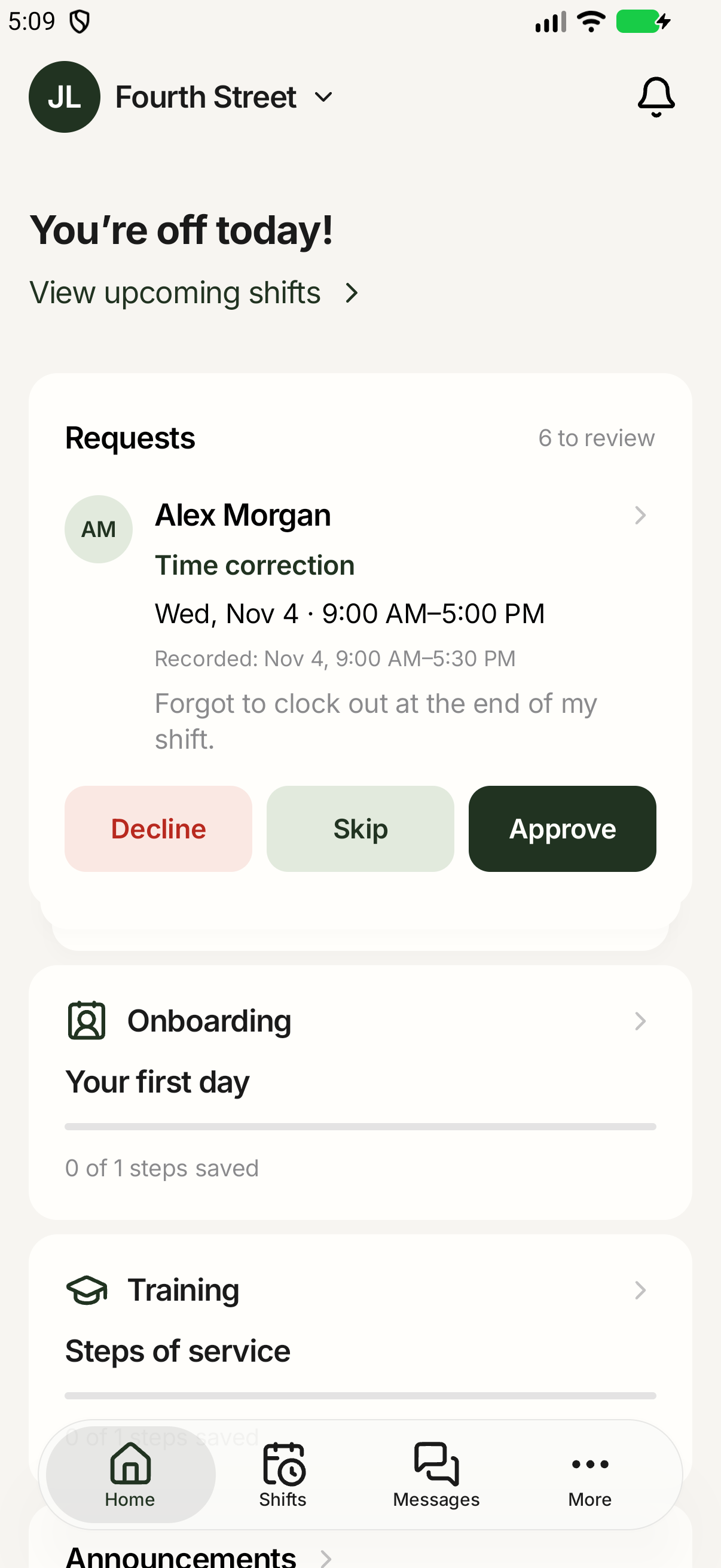
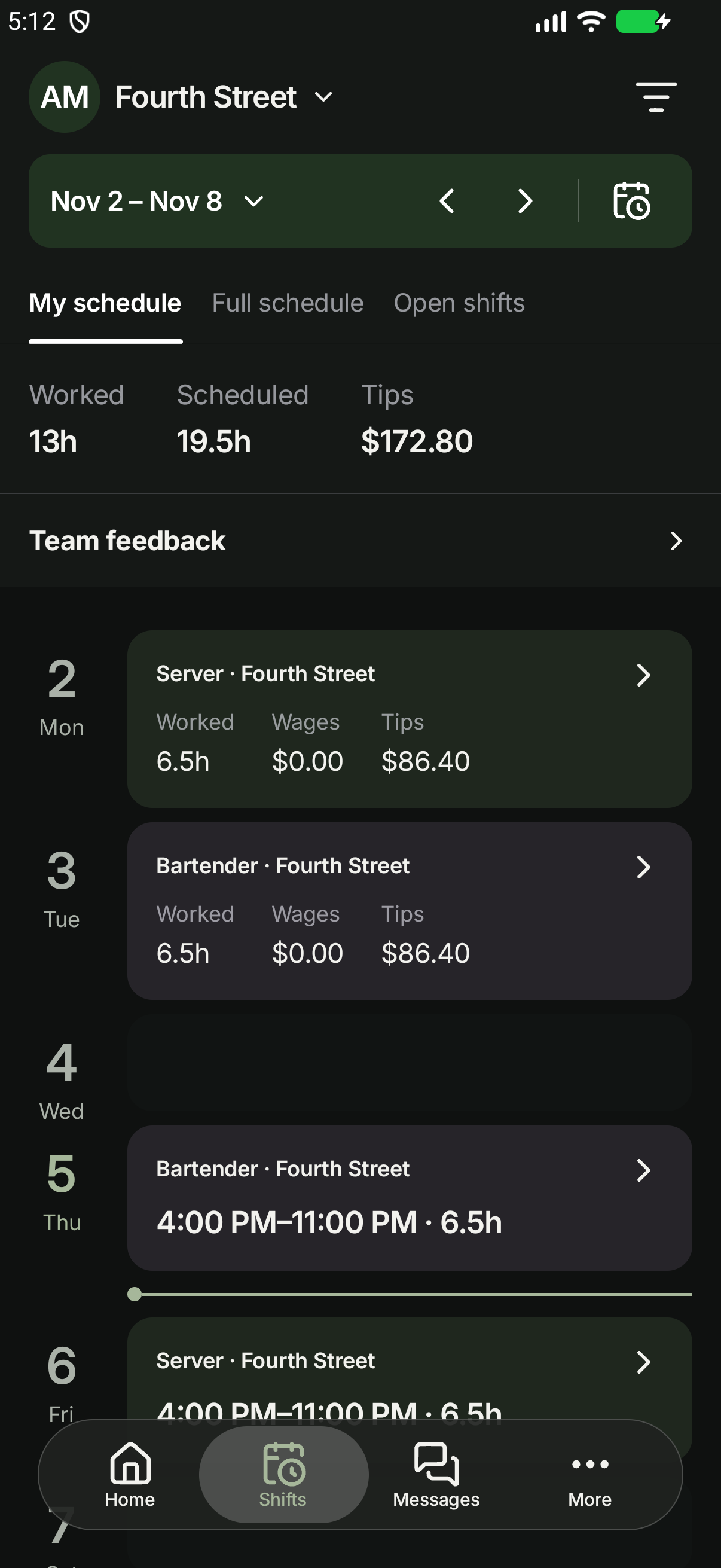
Before, during, and after service
Know what’s next.
Stay connected.
- Your schedule, on hand.
- See upcoming shifts, request time off, and find opportunities to pick up or swap a shift.
- Keep the conversation going.
- Message your coworkers and catch the workplace updates that matter to you.
- Walk in ready.
- Find training, checklists, and menu resources from your workplace.
Get started
On your phone.
Ready for work.
Get Team on your phone and sign in to your workplace.
Get the app.
On iPhone or iPad, tap Download on the App Store and install Trellis Team.On Android, tap Download for Android and open the downloaded APK.
Install and open Team.
When installation finishes, tap Open in the App Store or choose Team on your Home Screen.If Android asks, open Settings and allow your browser to install unknown apps. Return to the download, tap Install, and open Team. You can turn this permission off afterward.
Sign in to your team.
Open Trellis Team and use the account your employer invited. Your workplaces and records will be ready when you sign in.
A few helpful details.
How do I update Team?
On iPhone and iPad, update Trellis Team through the App Store.On Android, return to this page, download the latest APK, and open it to update the existing app. There’s no need to uninstall Team.
I don’t have an account yet.
Ask your manager for a Trellis invitation. Installing the app doesn’t create a workplace account.
Where can I get help?
Ask your manager about your workplace, schedule, or account access. For help with the app, email hello@trellispos.com.
Trellis Team